

Technical Support
Everything you need to get crystal-clear audio, flawless video, and the best possible online lesson experience.
How Can We Help You Today?
Whether you are setting up for your first lesson or troubleshooting an issue, we have comprehensive guides and direct support to get you back on track.
Zoom Setup
Configure Zoom for optimal music lesson audio quality with Original Sound mode.
Setup GuideAudio Issues
Fix microphone problems, echo, distortion, and optimize your sound quality.
TroubleshootVideo Problems
Camera not working, poor quality, or display issues during your lessons.
Get HelpConnection Issues
Lagging, freezing, disconnections, and internet optimization tips.
Fix NowBooking Help
Schedule lessons, reschedule, sync calendars, and timezone questions.
Learn MoreAccount & Login
Password reset, profile settings, payment methods, and access issues.
Manage
Enable Original Sound Mode
Standard Zoom compresses audio and removes musical frequencies to optimize for speech. For music lessons, you need to enable Original Sound to hear the full range of your instrument or voice.
This preserves dynamics, overtones, and the nuances that make music beautiful.
- Original Sound - Preserves full audio spectrum
- High Fidelity Mode - Studio-grade audio quality
- Stereo Audio - Full left/right sound field
- Headphones Required - Prevents echo and feedback
Computer
- Windows 10+ or macOS 10.13+
- Dual-core processor Quad-core recommended
- 4GB RAM minimum 8GB+ recommended
- 720p webcam 1080p recommended
- Chrome, Firefox, Safari, or Edge
- Zoom Desktop Client (latest)
Mobile & Tablet
- iOS 14.0+ or Android 10+
- iPad recommended for larger screen
- Zoom mobile app (latest version)
- Front-facing camera
- Wired headphones with mic
- Stable WiFi (not cellular)
Internet
- 3 Mbps minimum 10+ Mbps recommended
- 3 Mbps upload 5+ Mbps recommended
- Latency under 100ms Under 50ms ideal
- Ethernet preferred over WiFi
- Close bandwidth-heavy apps
- Test at fast.com
No Audio / Mic Not Working
Cannot hear or be heard
- Check Zoom is not muted (bottom left)
- Zoom Settings > Audio > Select correct mic
- Click "Test Mic" to verify
- Check system permissions for Zoom
- Close other apps using microphone
- Unplug and replug headphones
- Restart Zoom completely
Camera Not Working
Black screen or no video
- Check video is enabled in Zoom
- Zoom Settings > Video > Select camera
- Check for physical camera cover
- Grant camera permission in system
- Close FaceTime, Photo Booth, etc.
- Update camera drivers (Windows)
- Restart computer if needed
Poor Connection / Lag
Freezing, cutting out
- Move closer to WiFi router
- Use ethernet cable if possible
- Close streaming apps and downloads
- Ask household to limit usage
- Turn off HD video in Zoom
- Disable virtual backgrounds
- Restart router if needed
High Notes Cut Off
Violin, flute, soprano distorted
- This is caused by audio compression
- Go to Zoom Settings > Audio
- Enable "Original Sound" option
- Turn on "High fidelity music mode"
- In meeting, click "Turn on Original Sound"
- BOTH parties need this enabled
- See our Zoom Guide for details
Help for Your Device
Select your platform for tailored setup instructions.
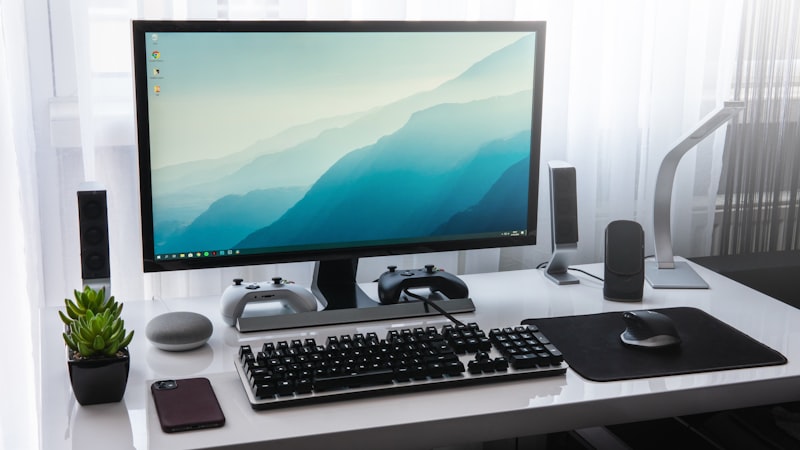
Windows PC
Download Zoom Desktop Client. Check audio in Sound Settings. Grant permissions in Privacy settings.

Mac
System Preferences > Security & Privacy. Enable Camera, Microphone, and Screen Recording for Zoom.
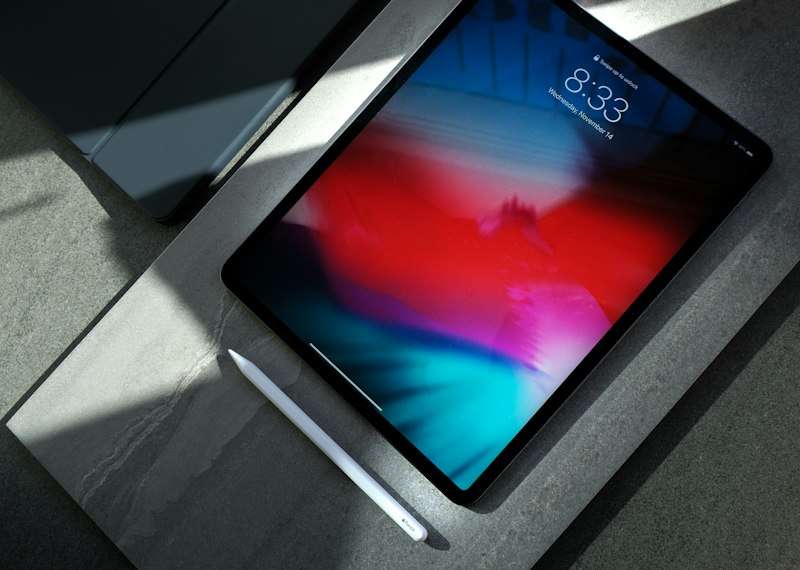
iPad & iPhone
Settings > Zoom > Enable Camera, Microphone, Local Network. Use wired headphones for best audio.

Contact Support
Cannot find what you need? Our team is here to help you get back to making music.
-
Emailinfo@theglobalconservatory.com
-
HoursMon-Fri 8AM-10PM EST, Sat 9AM-5PM
-
Live ChatAvailable during support hours
-
Response TimeWithin 24 hours (usually faster)